
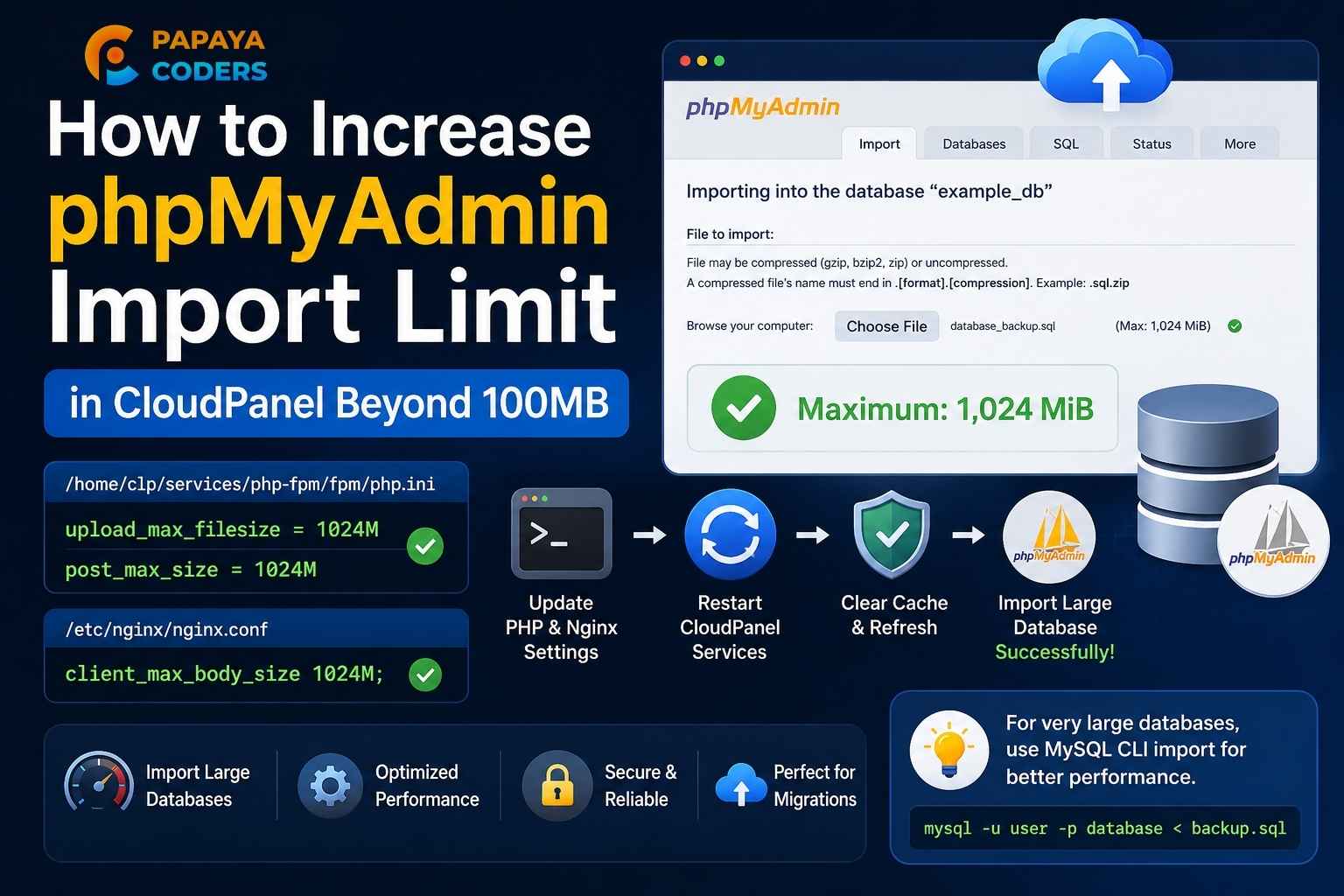
If you’re using CloudPanel and trying to import a large MySQL database through phpMyAdmin, you may notice that the upload limit remains stuck at 100 MiB, even after increasing PHP and Nginx upload limits.
This issue can be frustrating when:
- Migrating websites to a new server
- Importing large Laravel or WordPress databases
- Restoring production backups
- Moving databases between VPS instances
In this guide, we’ll explain why this happens and show the exact steps required to increase the phpMyAdmin upload limit from 100MB to 1GB or more in CloudPanel.
The Problem
Most administrators start by updating standard PHP and Nginx settings.
For example:
upload_max_filesize = 1024M
post_max_size = 1024M
And in Nginx:
client_max_body_size 1024M;
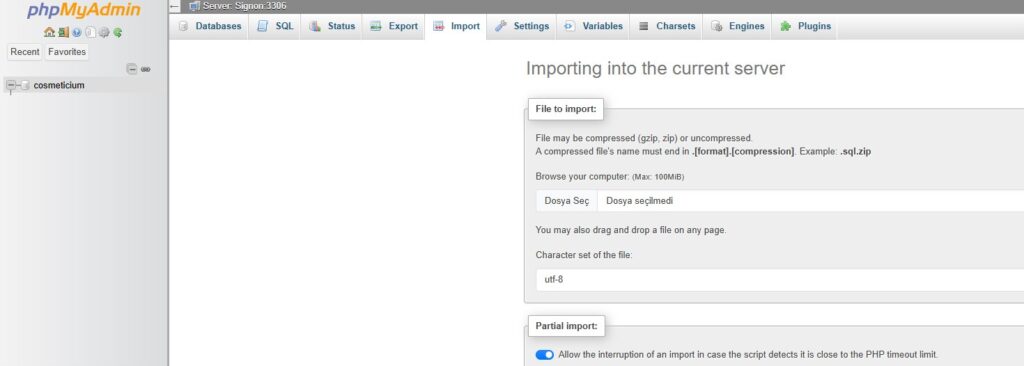
Despite these changes, phpMyAdmin still shows:
Maximum: 100 MiB
and prevents importing larger database backups.
Why Standard PHP Changes Don’t Work
Most Linux administrators modify PHP settings located in files such as:
/etc/php/8.1/fpm/php.ini
or
/etc/php/8.4/fpm/php.ini
However, CloudPanel operates differently.
CloudPanel includes its own PHP-FPM service that powers internal applications such as phpMyAdmin.
As a result, changes made to the system PHP configuration may not affect phpMyAdmin at all.
The actual configuration used by CloudPanel is located under:
/home/clp/services/php-fpm/
This is the reason many users continue seeing the 100MB limit even after correctly modifying PHP and Nginx settings.
Step 1: Verify Current PHP Upload Limits
Before making any changes, check the current PHP upload limits:
php -i | grep upload_max_filesize
php -i | grep post_max_size
If you have already increased these values but phpMyAdmin still shows 100 MiB, continue to the next step.
Step 2: Update CloudPanel PHP Configuration
Modify CloudPanel’s dedicated PHP-FPM configuration:
sed -i 's/^upload_max_filesize.*/upload_max_filesize = 1024M/' /home/clp/services/php-fpm/fpm/php.ini

sed -i 's/^post_max_size.*/post_max_size = 1024M/' /home/clp/services/php-fpm/fpm/php.ini
Verify the changes:
grep -E "upload_max_filesize|post_max_size" /home/clp/services/php-fpm/fpm/php.ini
Expected output:
post_max_size = 1024M
upload_max_filesize = 1024M
Step 3: Update Nginx Upload Limit
Now verify the Nginx upload limit:
grep client_max_body_size /etc/nginx/nginx.conf
If it shows:
client_max_body_size 64M;
Increase it to:
client_max_body_size 1024M;
You can update it directly:
sed -i 's/client_max_body_size 64M;/client_max_body_size 1024M;/g' /etc/nginx/nginx.conf
Step 4: Restart CloudPanel Services
After updating the configuration, restart CloudPanel’s services:
systemctl restart clp-php-fpm
systemctl restart clp-nginx
Verify services are running:
systemctl list-units --type=service | grep clp
Expected output:
clp-agent.service
clp-nginx.service
clp-php-fpm.service

How We Identified the Root Cause
To locate the configuration responsible for the 100MB limit, we searched the CloudPanel installation for occurrences of “100M”:
grep -R "100M" /home/clp/services/ 2>/dev/null
Output:
/home/clp/services/php-fpm/cli/php.ini:post_max_size = 100M
/home/clp/services/php-fpm/cli/php.ini:upload_max_filesize = 100M
This revealed that CloudPanel maintains its own PHP configuration separate from the standard Linux PHP installation.

Step 5: Refresh phpMyAdmin
Clear browser cache and perform a hard refresh:
Windows/Linux
Ctrl + F5
macOS
Cmd + Shift + R
Open phpMyAdmin again and navigate to:
Import → Choose File
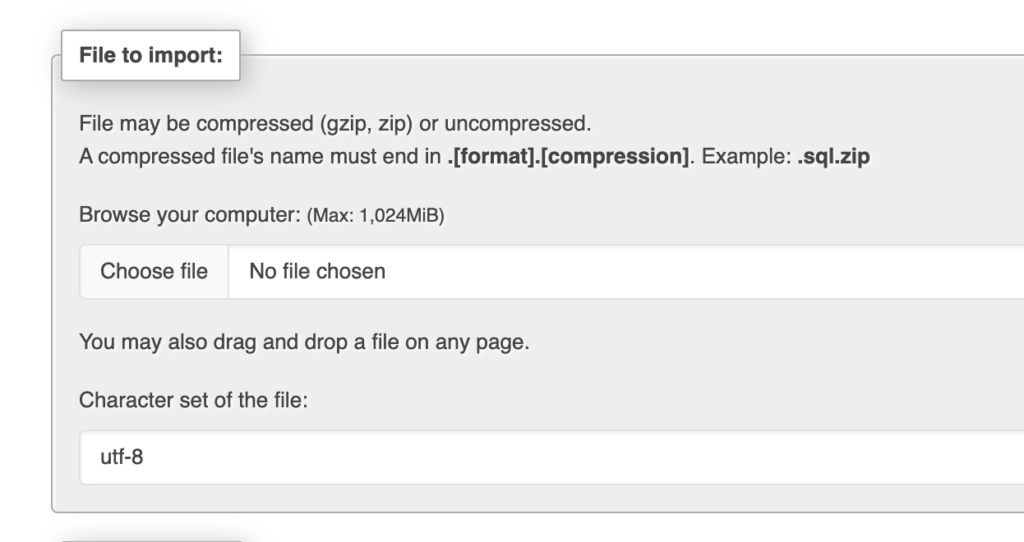
You should now see:
Maximum: 1,024 MiB
Recommended Alternative for Large Databases
Although increasing phpMyAdmin’s upload limit works, it is not always the best solution for large database imports.
For databases larger than 500MB, importing through the MySQL command line is significantly faster and more reliable.
Example:
mysql -u DB_USER -p DATABASE_NAME < backup.sql
Benefits:
- Faster import speed
- No browser timeout issues
- No upload limitations
- Better for production environments
- Ideal for Laravel and WordPress migrations
Common Issues and Solutions
phpMyAdmin Still Shows 100 MiB
Verify:
grep -E "upload_max_filesize|post_max_size" /home/clp/services/php-fpm/fpm/php.ini
Restart:
systemctl restart clp-php-fpm
systemctl restart clp-nginx
Clear browser cache and reload phpMyAdmin.
Upload Fails Despite 1GB Limit
Check Nginx:
grep client_max_body_size /etc/nginx/nginx.conf
Ensure it is set to:
client_max_body_size 1024M;
Frequently Asked Questions
Why does phpMyAdmin still show 100MB after changing PHP settings?
CloudPanel uses its own PHP-FPM configuration located under:
/home/clp/services/php-fpm/
instead of the standard /etc/php/ configuration.
Which file controls phpMyAdmin upload limits in CloudPanel?
/home/clp/services/php-fpm/fpm/php.ini
Do I need to restart CloudPanel after modifying PHP settings?
Yes:
systemctl restart clp-php-fpm
systemctl restart clp-nginx
What is the best method for importing large databases?
For large SQL files, use:
mysql -u USERNAME -p DATABASE_NAME < backup.sql
instead of phpMyAdmin.
Conclusion
If phpMyAdmin in CloudPanel remains limited to 100 MiB despite modifying PHP and Nginx settings, the root cause is usually CloudPanel’s dedicated PHP-FPM configuration.
The most important file is:
/home/clp/services/php-fpm/fpm/php.ini
After updating this file and restarting CloudPanel services, phpMyAdmin will correctly recognize the new upload limits.
This simple fix can save hours of troubleshooting when migrating websites or importing large MySQL backups.
Need Help with CloudPanel or Laravel Deployment?
Papaya Coders specializes in:
- Laravel Development
- VPS Setup & Optimization
- CloudPanel Management
- Database Migration
- Server Security
- Performance Optimization
Website: https://papayacoders.com
Email: papayacoders@gmail.com
Phone: +91 6392806939